FR French
BR Portuguese (Brazil)
PL Polish
IT Italian
DE German
US English (US)
ES Spanish

Contact Us

If you still have questions or prefer to get help directly from an agent, please submit a request.
We’ll get back to you as soon as possible.

  • Submit a Diagnostic Report
English (US)
FR French
BR Portuguese (Brazil)
PL Polish
IT Italian
DE German
US English (US)
ES Spanish
  • Home
  • Manage Team Settings
  • VoiceHub Settings

Block Unwanted Calls/Messages (SPAM)

Written by TJ Salyars

Updated at June 9th, 2026

Contact Us

If you still have questions or prefer to get help directly from an agent, please submit a request.
We’ll get back to you as soon as possible.

  • Getting Started for Advisors
  • Getting Started for Managers
  • Ticket Functionality
    Basic Ticket Functionality Advanced Ticket Functionality
  • Contact Management
  • Insights
  • Manage Team Settings
    Team Settings VoiceHub Settings Chat Settings EmailHub Settings WhatsApp
  • Manage Company Settings
  • Admin Page Settings
  • Integrations
  • Mobile App Functionality
  • Best Practices
  • Troubleshooting
  • FAQ's
+ More

Table of Contents

Blocking SPAM Calls/Messages From the Calls Tab From VoiceHub Settings (Manager-specific)

Blocking SPAM Calls/Messages

If you as an advisor receive unwanted calls or messages from certain phone numbers or phone number area codes, there are two ways to block those phone numbers.

Attention: The blocking of calls from unwanted numbers should be done based on the teams. That means, if the unwanted caller contacts other teams, the block must be applied individually for each of those teams.


From the Calls Tab

  1. Navigate to the Calls tab and find the SPAM call.
  2. On the right-hand side of the call, find the action to Report SPAM.
  3. Select "Yes" to confirm you want to block this phone number.

From VoiceHub Settings (Manager-specific)

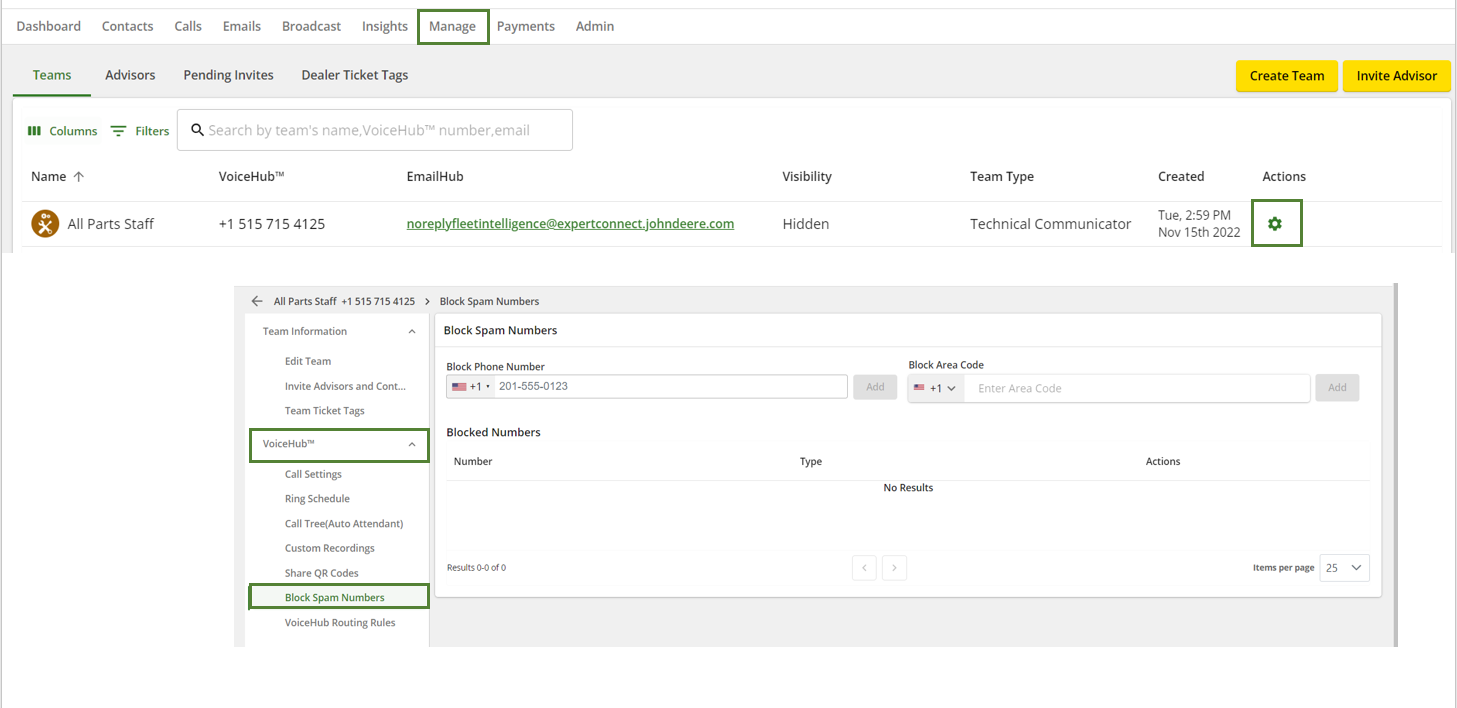
  1. Click on the Manage page and select the gear icon under the Actions column that is to the right of the team name.
  2. Click into the team's VoiceHub Settings and select Block SPAM Numbers.
  3. Choose to block an individual phone number or an entire phone number area code.
  4. Click Add to save your settings.

spam calls call blocker unwanted block filter

Was this article helpful?

Yes
No
Give feedback about this article

Related Articles

  • Create a Call Tree
  • VoiceHub Settings
  • Creating and Editing Ring Schedules
  • Create a Ticket for Missed Calls
  • Create a Custom Recording
Feedback

United States
  • Terms and Conditions

Content is protected by copyright. Copying, modifying, or reposting content is prohibited. Copyright © 2023 Deere & Company. All Rights Reserved


Knowledge Base Software powered by Helpjuice

Expand